
Imagine this: You’re in the middle of a tense PUBG Mobile match, sweat dripping down your brow, and your thumbs are struggling to keep up with the action. Wouldn’t it be great to swap those tiny controls for something a bit more substantial, like a game controller? Well, sit tight, because the answer you’re looking for isn’t as straightforward as you might hope. Let’s jump into whether playing PUBG Mobile with a controller is a game-changing experience or if you should stick to tapping away on your touchscreen.
Understanding PUBG Mobile’s Compatibility With Controllers
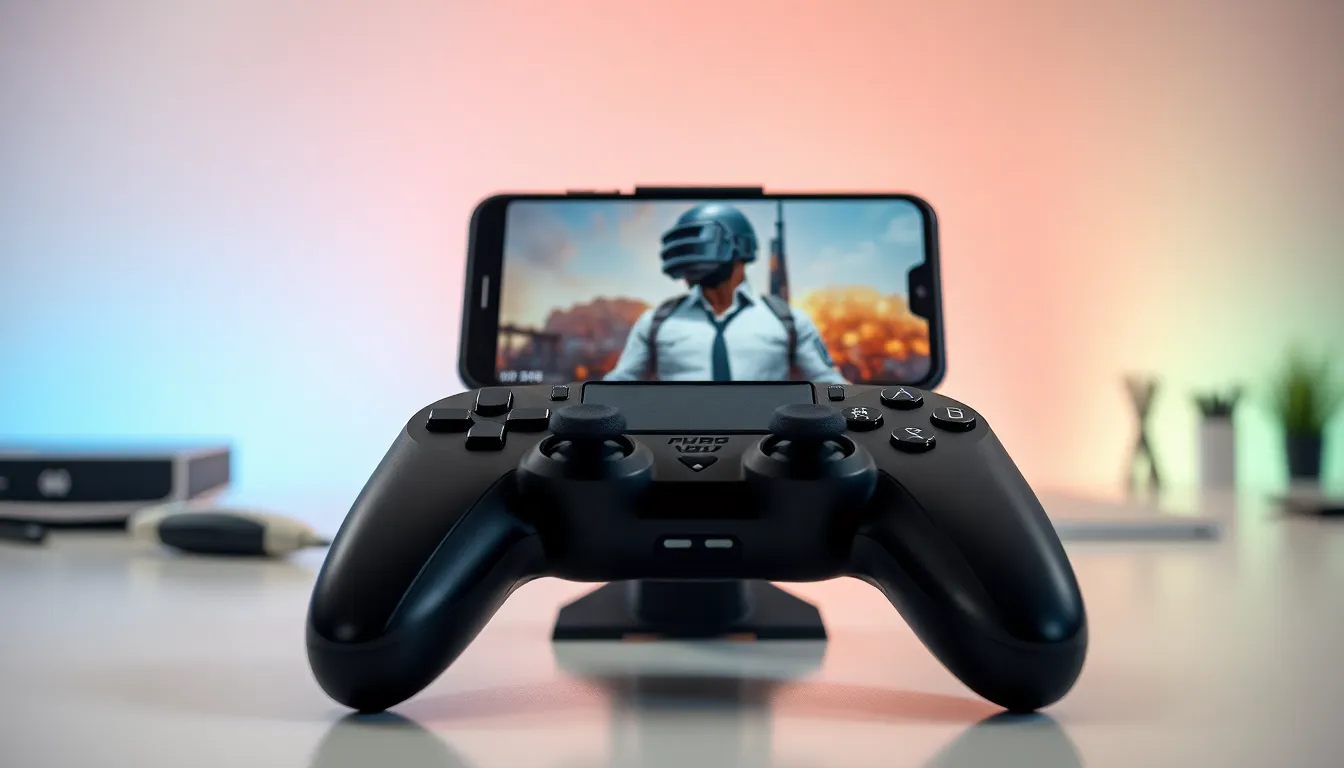
In recent years, mobile gaming has reached impressive heights, and PUBG Mobile is at the forefront of this revolution. But can you actually use a controller? Well, PUBG Mobile does support controller input. But, it’s not as simple as plugging in any old gamepad. The game is optimized for touch controls, meaning that even though you have the option to use a controller, the experience may not be as seamless as one might expect. In fact, the compatibility can vary significantly depending on the device and operating system. Android users have the upper hand here: most modern devices can connect to Bluetooth controllers, while iOS users may find themselves limited due to stricter compatibility restrictions.
Also, PUBG Mobile provides an option for “Controller Mode” in the settings. This mode does streamline some of the gameplay when using a controller, but the player must expect some differences compared to playing on PC or console. Hence, understanding these nuances is essential before making the leap to controller gameplay.
Also, it’s worth noting that while many controllers are compatible, not all games offer the same level of support. Hence, even though PUBG Mobile offers this flexibility, gamers might find that not every function translates perfectly from touch to controller input.
Benefits of Using a Controller for PUBG Mobile
Switching to a controller can bring a handful of advantages, especially if someone is accustomed to console gaming. One of the most significant benefits of using a controller for PUBG Mobile is enhanced precision. The analog sticks on controllers provide better control over movements compared to tapping and swiping on a touchscreen. Greater accuracy can lead to more headshots and intense gameplay.
Also, controllers often come with ergonomic designs that can reduce strain during long gaming sessions. For players who could easily spend hours on end battling out in the game, the comfort a controller provides cannot be overstated.
Another compelling point is the ability to assign buttons to specific in-game actions, which can streamline gameplay. Instead of fumbling through the interface with their fingers on a phone screen, players can execute complex maneuvers with the press of a button. This level of control can provide a competitive edge, especially in high-stakes situations.
How to Connect a Controller to PUBG Mobile
Connecting a controller to PUBG Mobile isn’t rocket science, but it does require a few steps. For those on Android, start by ensuring your controller is Bluetooth-enabled. Activate Bluetooth on your device, and put your controller into pairing mode. Go to the Bluetooth settings and select your controller from the list. Once connected, open PUBG Mobile, go to the settings, and enable Controller Mode.
On iOS, the process is quite similar. But, compatibility is an important factor to keep in mind, as not all controllers work seamlessly with iPhones and iPads. After connecting, players should check the controller settings in the game to ensure everything is calibrated. This will help to avoid any unforeseen issues when it’s go-time on the battlefield. Also, players should bear in mind that having the latest firmware for both the controller and the game can prevent potential hiccups.
Best Controllers for PUBG Mobile
So, what are the best controllers for playing PUBG Mobile? While there are many options on the market, a few stand out.
- Xbox One Wireless Controller – This legendary controller boasts a responsive design and is known for its compatibility with multiple platforms, including Android.
- Sony DualShock 4 – Another solid option, this controller provides excellent comfort and control, particularly for those who prioritize precision.
- Razer Kishi – The Kishi is designed specifically for mobile gaming, easily attaching to any smartphone and turning it into a handheld console.
- GameSir G4 Pro – Versatile and affordable, this option supports various devices and has a robust build.
Eventually, the choice will depend on personal preferences, budget, and compatibility with the player’s device. It’s often a good idea to read reviews before purchasing to ensure the controller will perform as expected.
Settings Adjustments for Optimal Performance
When playing with a controller, optimizing settings in PUBG Mobile can greatly enhance the experience. Firstly, players should navigate to the sensitivity settings and adjust them to fit their play style. Higher sensitivity can speed up aiming but may also be harder to control. Finding a comfortable balance between speed and accuracy is key.
Next, consider customizing the button layout for a more intuitive gameplay experience. Assign frequently used commands to easily reachable buttons for quick access. This might take some trial and error, but once familiar with custom setups, players can significantly increase their efficiency.
Finally, ensure that the Controller Mode is active during matches. This setting helps to ensure the game responds accurately to controller inputs and avoids any lag. A few minutes spent on settings adjustments could make a world of difference when it comes to in-game performance.
Common Issues and Troubleshooting Tips
Even though connecting a controller to PUBG Mobile is relatively straightforward, players might encounter some hurdles. One prevalent issue involves lag or unresponsive controls. This often results from Bluetooth connectivity problems or outdated software on either the controller or the game.
If experiencing lag, players can try disconnecting and reconnecting the controller. Alternatively, turning off and on Bluetooth can resolve ongoing issues.
Another common snag is the inability to map buttons correctly. If players find that their inputs aren’t registering as intended, they should double-check in-game settings. There may also be a need for firmware updates for the controller itself.
Finally, some users report connectivity problems when moving between devices or taking long gaming breaks. Restarting the game and reconnecting the controller can often remedy these issues. Keeping up with troubleshooting tips ensures a smoother gaming experience.

